← All chapters · Larry Seyer Drums
Chapter 08 · Beta tester guide
Bringing in Grooves
Temporary quick-start for TestFlight testers until the tutorial videos are ready.
Import a MIDI file and generate a style
You can turn a drum MIDI file into a playable Larry Seyer Drums style.
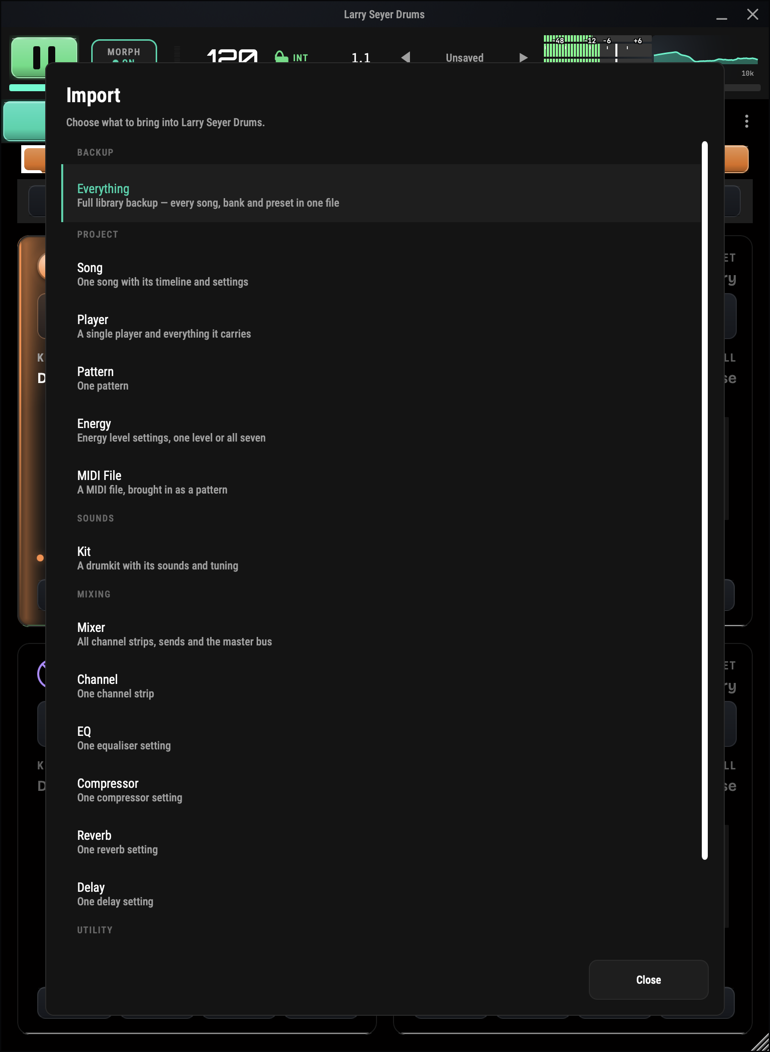
On Mac and iPad
On iPhone
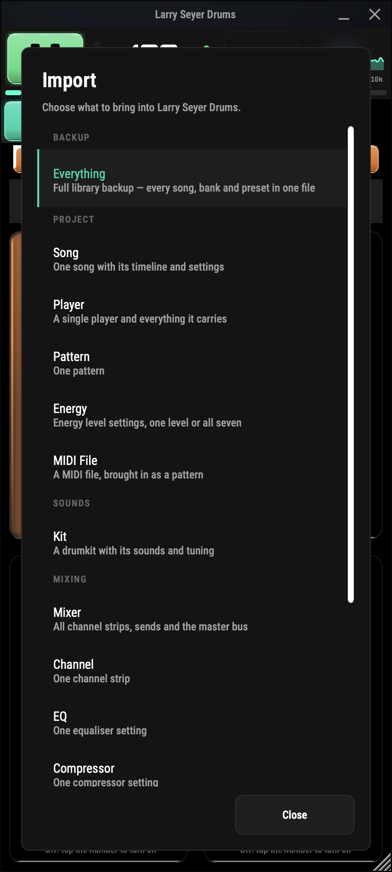
- Open Import → MIDI File.
- Choose how to read it: EX (Larry Seyer Drums’ own notes) or General MIDI.
- If the file came from another product, use Assign this file’s drums. You’ll get a row per note, a drum menu, an audition speaker, and saved note maps. The app will tell you if some notes were left out, for example “3 of 14 notes left out.”
- Name the style. The “Saved as” preview appends the tempo.
- Set Feel to Auto, Straight or Triplet, and Quantize on or off.
- Import it as a Verse.
- Watch Generation Progress. The app writes an Intro, Chorus, Bridge and fills from your Verse, on this device — nothing is sent off the machine.
- If you don’t like the generated parts, use Generate Again.
You can also drag a MIDI file straight onto a pill row or a pool column on a Mac. On iPhone and iPad, import from the Files app. Dragging is still being retested, so if a drag doesn’t take, use the Import window and tell me.
Rules worth knowing
- Channel 10 is preferred when it’s present. Otherwise the file’s own channels are used. It is not “channel 10 only.”
- If the file has no tempo marking, the import uses 120 BPM.
- Very long files are capped.
- Generation needs the transport stopped. Cancel leaves no partial style.
- Repeated names are numbered. A failed import leaves the source file alone.
- The app will show you how many fills it generated. I don’t quote a library-wide fill count here, because the number you should trust is the one on screen.
A good test: import a groove you actually play, listen to the generated Chorus and fills, then generate again and compare.
Previous: The Pattern Editor · Index · Next: Sounds and a Feature Called Morph