← All chapters · Larry Seyer Drums
Chapter 14 · Beta tester guide
Keyboard Shortcuts
Temporary quick-start for TestFlight testers until the tutorial videos are ready.
Opening the shortcuts window
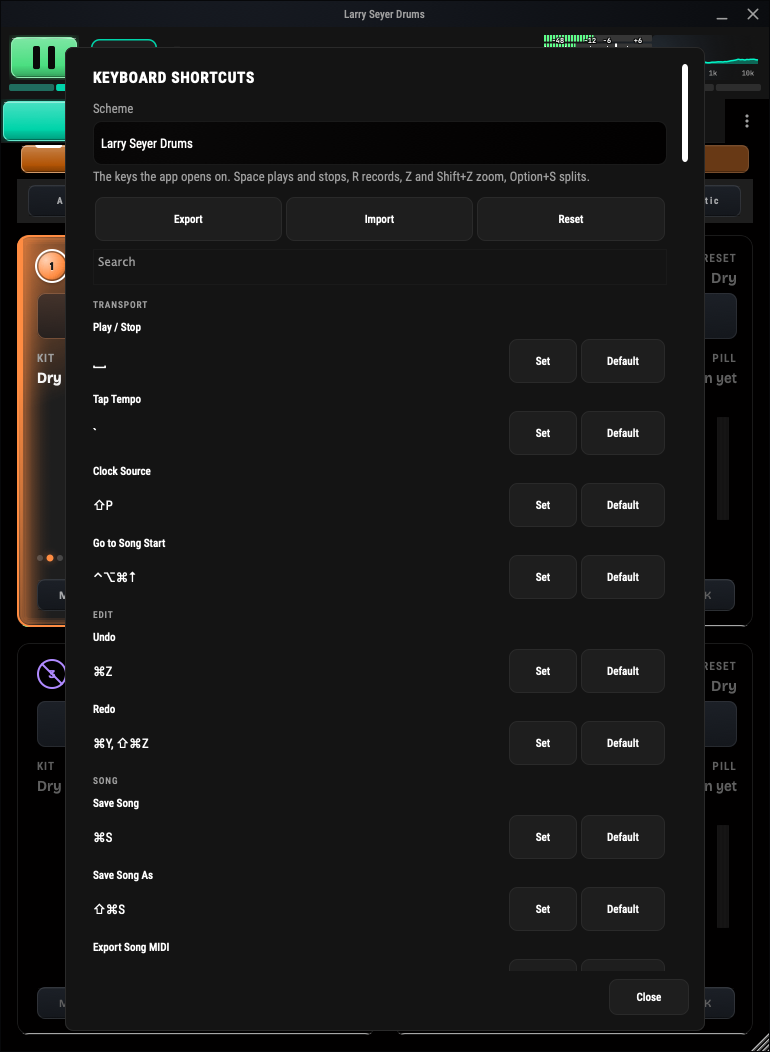
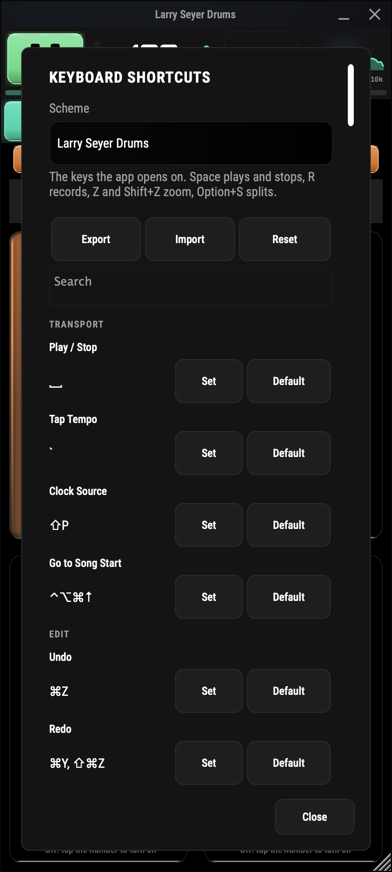
Open Keyboard Shortcuts from the three-dot menu, or press K. The window is grouped and searchable. It is its own window, not a page inside App Settings.
You can choose a scheme (the Larry Seyer Drums scheme, or DAW 1 through DAW 6), rebind a key, reset shortcuts, and import or export a shortcut set.
The same keys work on a Mac, in a plug-in (once the plug-in window has keyboard focus), and on an iPhone or iPad with a hardware keyboard. Menu rows show their shortcut only while a keyboard is connected.
In an iOS host, the AUv3 window is Quick Pick and the host normally keeps the keyboard, so learn and use shortcuts in the full app.
On Mac and iPad
On iPhone
The essentials
These are from the default Larry Seyer Drums scheme:
| Key | What it does |
|---|---|
| Space | Play / Stop |
| Command+S | Save |
| Command+Shift+S | Save As (this is Command+Option+S in the DAW 1 scheme) |
| Option+S | Split (this is S in the DAW 1 scheme) |
| Command+G | Combine |
| Command+I | Insert Measures |
| 1–7 | Set the selected pill’s energy |
| L, P, F | Loop, Pre-Fill, Post-Fill |
| Tab | Show or hide the Pattern Editor |
| M | Mixer |
| Q | Quick Pick |
| Home / End | Jump in the timeline |
| Command+P | Pattern Editor |
| Command+F | Find Song (Mac and iPad) |
Command+Shift+S is Save As in the default scheme. If you’ve switched to DAW 1, that scheme moves Save As to Command+Option+S, because S on its own is Split.
Click in a plug-in window before you type, and check whether the host has a “send all keys to the plug-in” option.
iPhone and iPad with an external keyboard
A USB or Bluetooth keyboard on iPhone or iPad uses the same catalog and the same handlers as the Mac. Held keys (for example Solo In Front) work. Function keys F1–F12 are accepted when the keyboard actually sends them.
A few things may not work, and they’re worth confirming on the device you’re testing:
- Shift+number chords (for example Command+Option+Shift+1–7, the preset Save As keys) are matched through the US number row. On another keyboard layout they may not fire.
- Function-key chords (F3, F9, F10, Shift+F3, Command+F3) need a keyboard that sends function keys. Many iPad and iPhone keyboards have no function row.
- Chords iOS keeps for itself never reach the app. The default scheme avoids them. Two alternate-scheme keys collide: Command+Shift+Tab (DAW 1’s second Pattern Editor key, which is the app switcher on iPad) and Command+Option+D (DAW 6 Ripple Delete, which is the iPad Dock).
- Some keyboards have no Escape key. Escape closes what’s in front; use the iPadOS substitute on the device if your keyboard doesn’t have one.
If you find a shortcut that should work and doesn’t, please include the keyboard model and layout, the device, and the scheme you were on.
Previous: iPhone and iPad · Index · Next: Saving and Backups