← All chapters · Larry Seyer Drums
Chapter 15 · Beta tester guide
Saving and Backups
Temporary quick-start for TestFlight testers until the tutorial videos are ready.
Save is what makes an edit permanent
This is the rule I want every tester to remember. You can do a lot of work in a Song, in the Pattern Editor, or on a kit, and still lose it if you never save.
- Save writes the current item, and only appears on things you created.
- Save As… makes a new named copy and is how you put a song into a bank slot.
- Done in the Pattern Editor keeps edits in the Song, but the Song still needs Save to make them permanent.
- Cancel backs out of the editor copy.
Names have to be unique, and the app applies Title Case. File pickers reopen at the folder you last used.
On iPhone
On iPhone, the song block replaces the stepper in portrait. Hold the song name to rename it in place.
Banks and slots
Songs are stored in banks of slots 0–99. Use Save As to write into a slot. Lock a slot if you don’t want it overwritten or deleted. The standalone app reopens the last slot at startup.
There’s more on stepping, finding, and building a set list in Songs: Arranging.
Import, export and a full backup
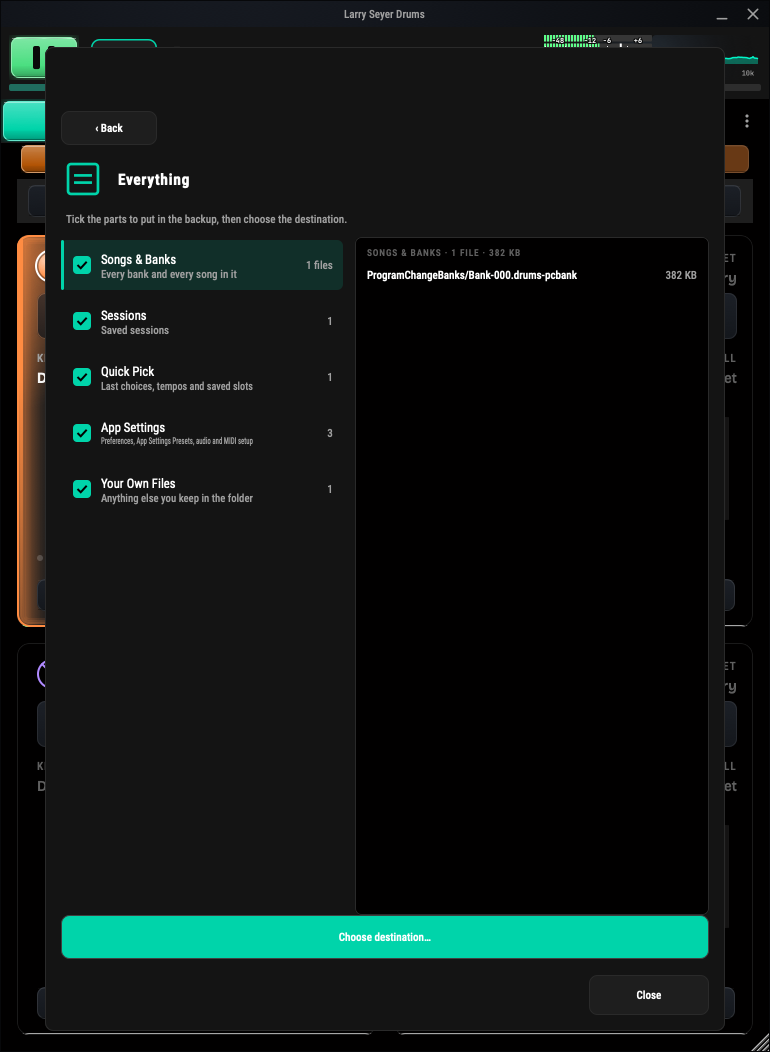
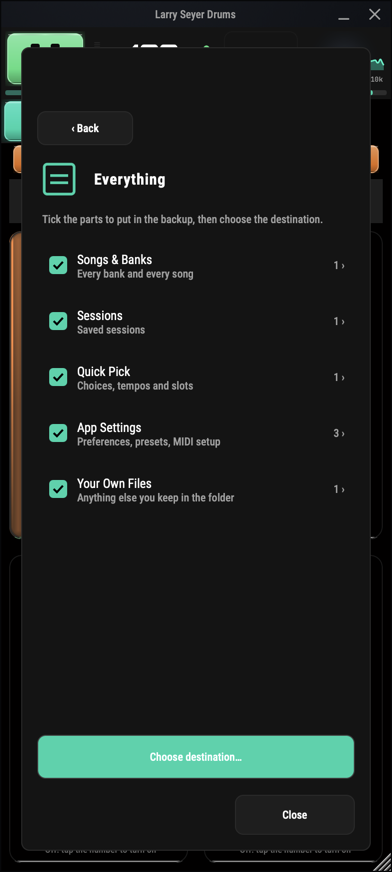
The three-dot menu’s Import and Export windows are grouped:
- Backup (Everything) — a
.drums-backup - Project — Song, Program Change This Bank / All Banks, Timeline
- Sounds — Player, Kit, Pattern, MIDI File
- Mixing — mixer, channel, EQ, compressor, reverb, delay
- Utility — Energy, App Settings, Keyboard Shortcuts
- Audio
You can Add To, Merge or Replace. Back up before any Replace, and before Reset to Factory Defaults. Reset offers Back Up & Reset; use it. Always back up first.
You can open a file straight into Import by double-clicking it on a Mac, or by opening it from the Files app on iPhone or iPad.
What actually travels:
- A shared preset or backup carries settings, never sample recordings. The library itself is already in the app.
- Imported UserPatterns travel only with the export that includes them. A Song file does not automatically bring every dependency with it.
- Missing content shows a labelled placeholder. Re-import the missing piece to recover it.
The AUv3 can’t present file pickers, so do file import and export from the standalone app. On iOS, you’ll use Files and the share sheet. Moving a backup to another device with AirDrop or Files is a good test if you have two devices.
On Mac and iPad
On iPhone
Settings that stay on the machine
App Settings has its own presets (for example Stage and Studio). Some settings live on the device and are not inside a Song: audio device, a lot of MIDI and sync setup, accessibility, and so on. Export App Settings if you want those on another machine.
On the desktop app (not a sandboxed store build), there is also a Local Storage Folder setting. Window Layout presets are desktop only. Haptics and shake-to-undo are iOS only.
If you ever need to start clean, use Reset to Factory Defaults — and take the backup it offers before you confirm.
Previous: Keyboard Shortcuts · Index · Next: Known Gaps in This Beta